> ## Documentation Index
> Fetch the complete documentation index at: https://docs.exterview.ai/llms.txt
> Use this file to discover all available pages before exploring further.
# How to Set Up Your Microsoft Teams Tenant for the Exterview Panel Bot
> Turn on recording and transcription, and grant the Exterview bot Graph access, in your organization's Microsoft Teams tenant.
**Core.** Before the Exterview bot can join, record, transcribe, and score a Panel or HR round in Microsoft Teams, your organization's Teams admin has to turn on recording and transcription, and grant the bot's application access to online meetings and transcripts.
## Turn on recording & transcription
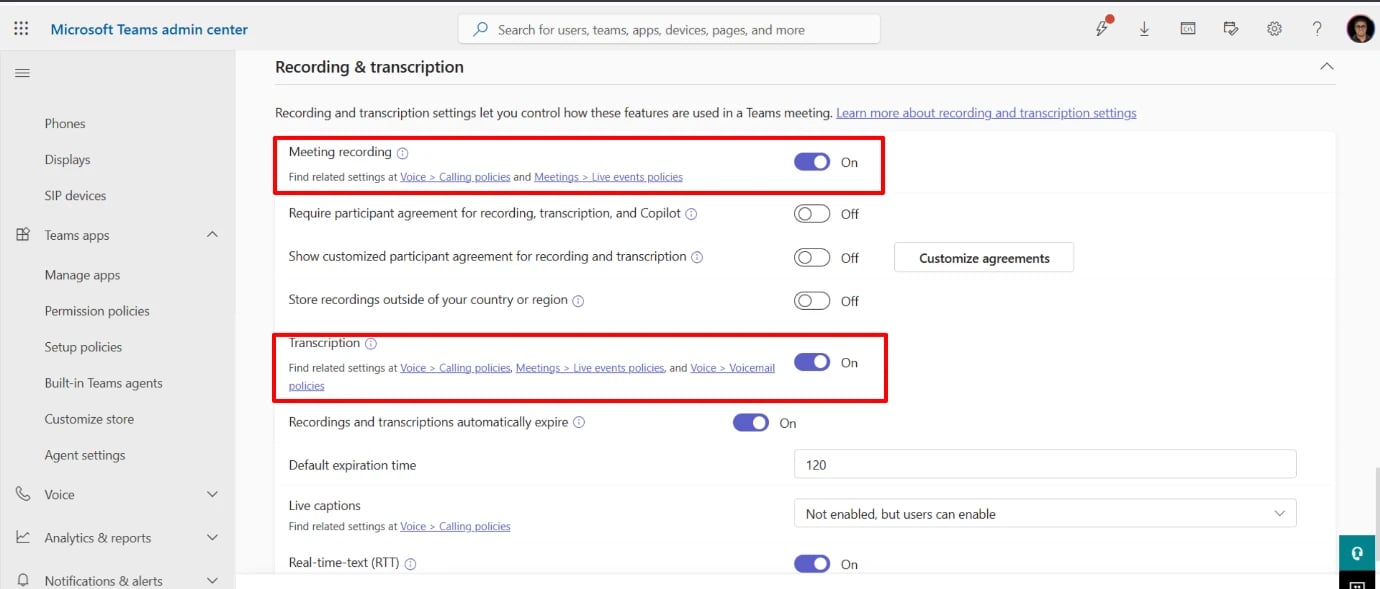
In the **Teams Admin Center**, as your organization's Global or Teams admin, go to **Meetings → Meeting policies** (Global, or whichever policy your users are on) and set:
* **Recording** → On
* **Transcription** → On
* **Include speaker attribution** → On (this triggers a personal-data-exposure confirmation popup — accept it to continue)
 ## Grant the bot Application Access
This part isn't in the Teams Admin Center UI — it's PowerShell only, and assumes the recording/transcription policy above is already set.
```powershell theme={null}
Connect-MicrosoftTeams
```
## Grant the bot Application Access
This part isn't in the Teams Admin Center UI — it's PowerShell only, and assumes the recording/transcription policy above is already set.
```powershell theme={null}
Connect-MicrosoftTeams
```
 MicrosoftTeams module **v7.9.0** has a kernel32.dll crash on macOS.
Downgrade to **5.9.0** if you hit it. Switching module versions requires
a fully fresh terminal process — mixing versions in one session throws
assembly-conflict errors.
Don't assume the UI toggle persisted — check it explicitly:
```powershell theme={null}
Get-CsTeamsMeetingConfiguration -Identity Global | Format-List EnableGraphTranscriptAccess, EnableAttributedTranscripts
```
Both should read `True`.
MicrosoftTeams module **v7.9.0** has a kernel32.dll crash on macOS.
Downgrade to **5.9.0** if you hit it. Switching module versions requires
a fully fresh terminal process — mixing versions in one session throws
assembly-conflict errors.
Don't assume the UI toggle persisted — check it explicitly:
```powershell theme={null}
Get-CsTeamsMeetingConfiguration -Identity Global | Format-List EnableGraphTranscriptAccess, EnableAttributedTranscripts
```
Both should read `True`.
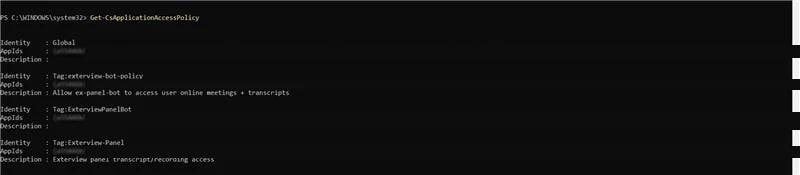
 ```powershell theme={null}
Get-CsApplicationAccessPolicy
```
```powershell theme={null}
Get-CsApplicationAccessPolicy
```
 ```powershell theme={null}
New-CsApplicationAccessPolicy -Identity ExterviewPanelBotPolicy -AppIds @("a55446b7-43a9-43d7-89a9-87f48485bff2","") -Description "Exterview Panel Bot — app-only Graph access to online meetings"
```
```powershell theme={null}
Grant-CsApplicationAccessPolicy -PolicyName ExterviewPanelBotPolicy -Global
```
Gotchas:
* `-AppIds` on `Set-CsApplicationAccessPolicy` replaces the whole list —
always include every app id you want kept, not just the new one.
* `-Global` has a real, sometimes multi-minute propagation delay. A blank
result on `Get-CsOnlineUser -Identity | Select-Object
ApplicationAccessPolicy` right after granting is not proof of failure —
sample 2-3 more users before concluding it didn't work.
* `-Global` never overrides a user who already has an individual policy
assigned.
* If uncertain or time-pressured, grant directly to the specific
organizer instead — this applies instantly, no propagation wait:
```powershell theme={null}
Grant-CsApplicationAccessPolicy -PolicyName ExterviewPanelBotPolicy -Identity
```
```powershell theme={null}
New-CsApplicationAccessPolicy -Identity ExterviewPanelBotPolicy -AppIds @("a55446b7-43a9-43d7-89a9-87f48485bff2","") -Description "Exterview Panel Bot — app-only Graph access to online meetings"
```
```powershell theme={null}
Grant-CsApplicationAccessPolicy -PolicyName ExterviewPanelBotPolicy -Global
```
Gotchas:
* `-AppIds` on `Set-CsApplicationAccessPolicy` replaces the whole list —
always include every app id you want kept, not just the new one.
* `-Global` has a real, sometimes multi-minute propagation delay. A blank
result on `Get-CsOnlineUser -Identity | Select-Object
ApplicationAccessPolicy` right after granting is not proof of failure —
sample 2-3 more users before concluding it didn't work.
* `-Global` never overrides a user who already has an individual policy
assigned.
* If uncertain or time-pressured, grant directly to the specific
organizer instead — this applies instantly, no propagation wait:
```powershell theme={null}
Grant-CsApplicationAccessPolicy -PolicyName ExterviewPanelBotPolicy -Identity
```