


Before you start
You need a configured role with EX Avatar enabled, and a candidate to invite. See Configure and Session Types.Steps
The notice is acknowledged before the interview starts. The dotted line is the path when an invite lapses.1
Enable EX Avatar for the role
Turn on EX Avatar for the pipeline stage where the video interview should run.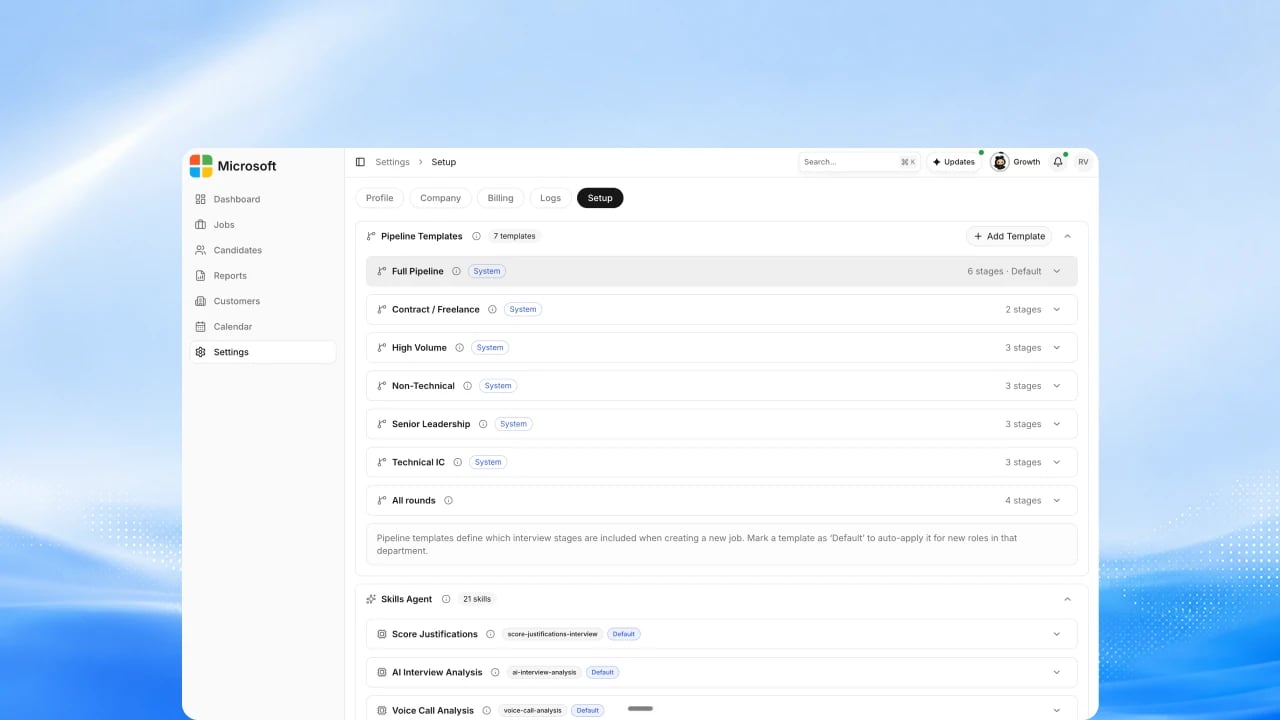
2
Confirm the questions and rubric
Review the questions and scoring rubric the avatar interviewer will use for this role. See How to Set Scoring Weights.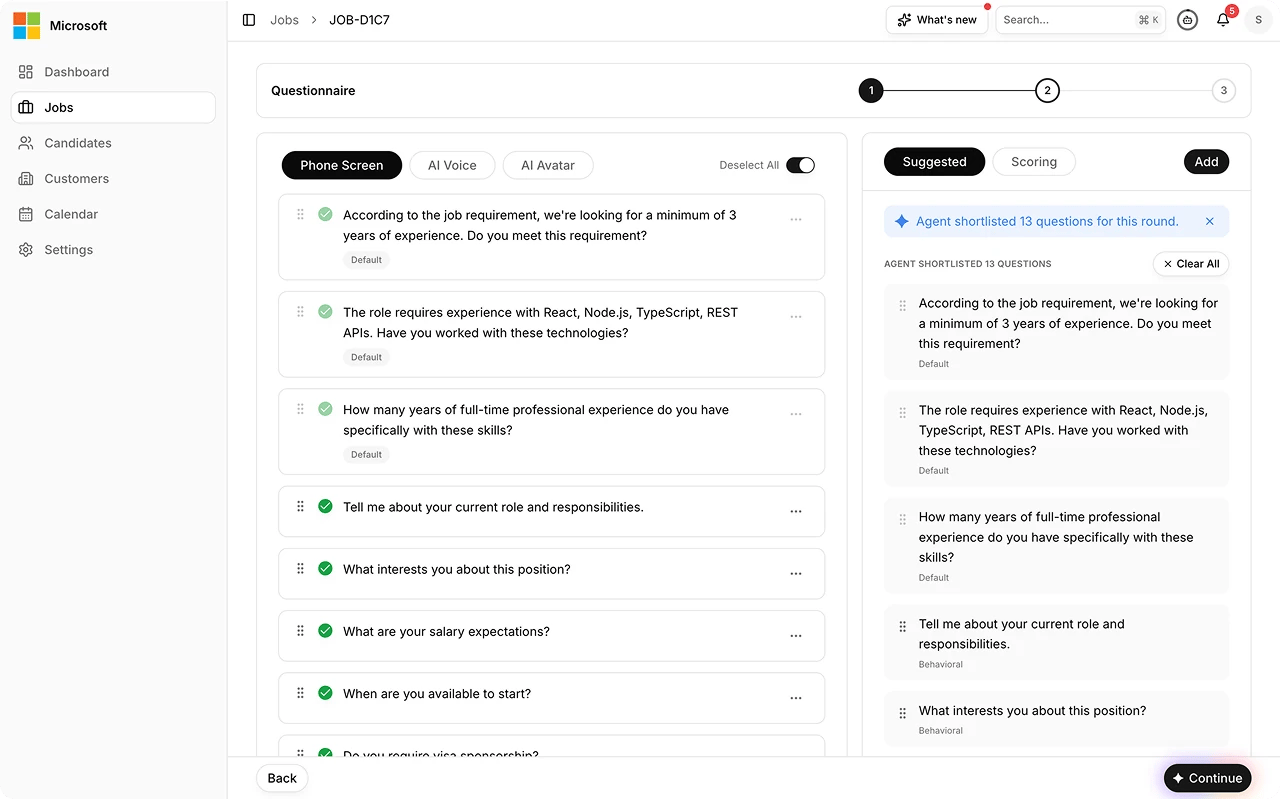
3
Invite the candidate
Send the invite or share the interview link, with the AI interview notice and privacy consent captured before the interview starts. See Invite Flows.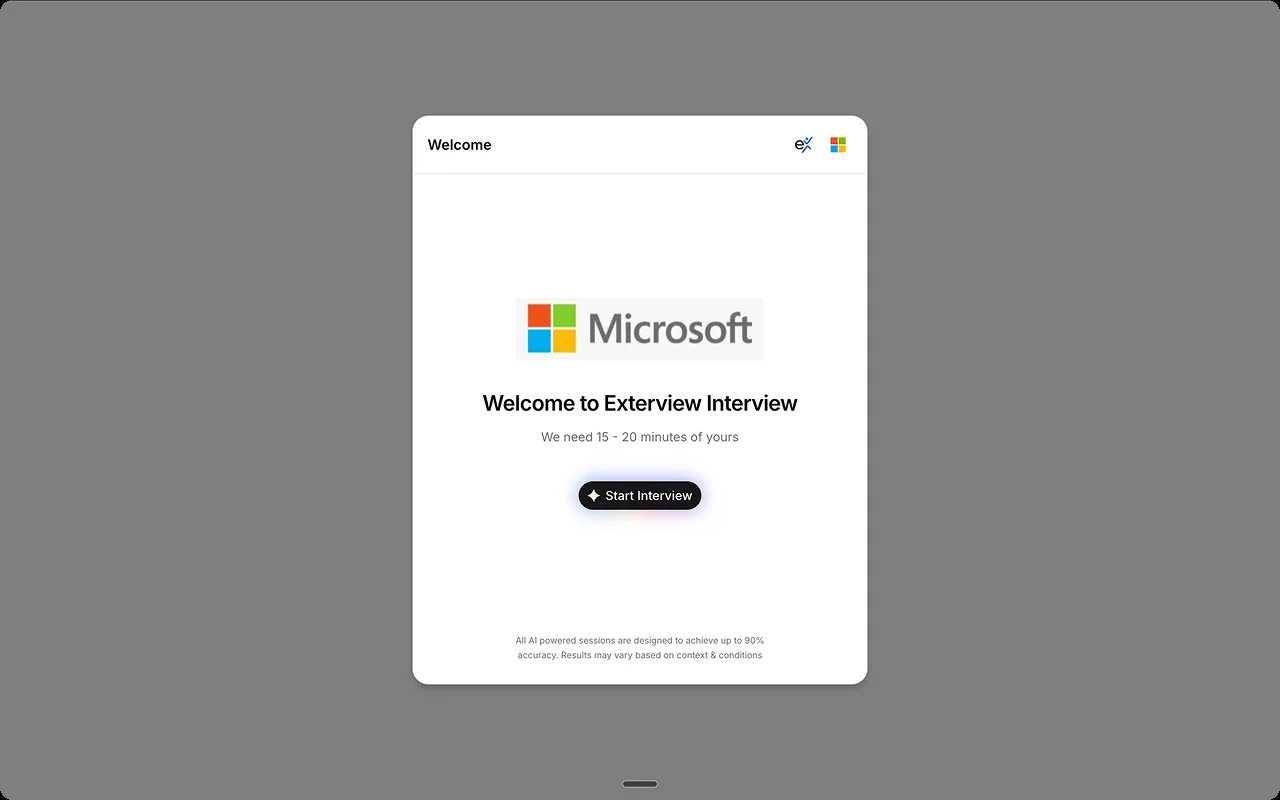
4
Candidate completes the interview
The candidate joins from any browser, passes the device and camera check, and completes the avatar interview.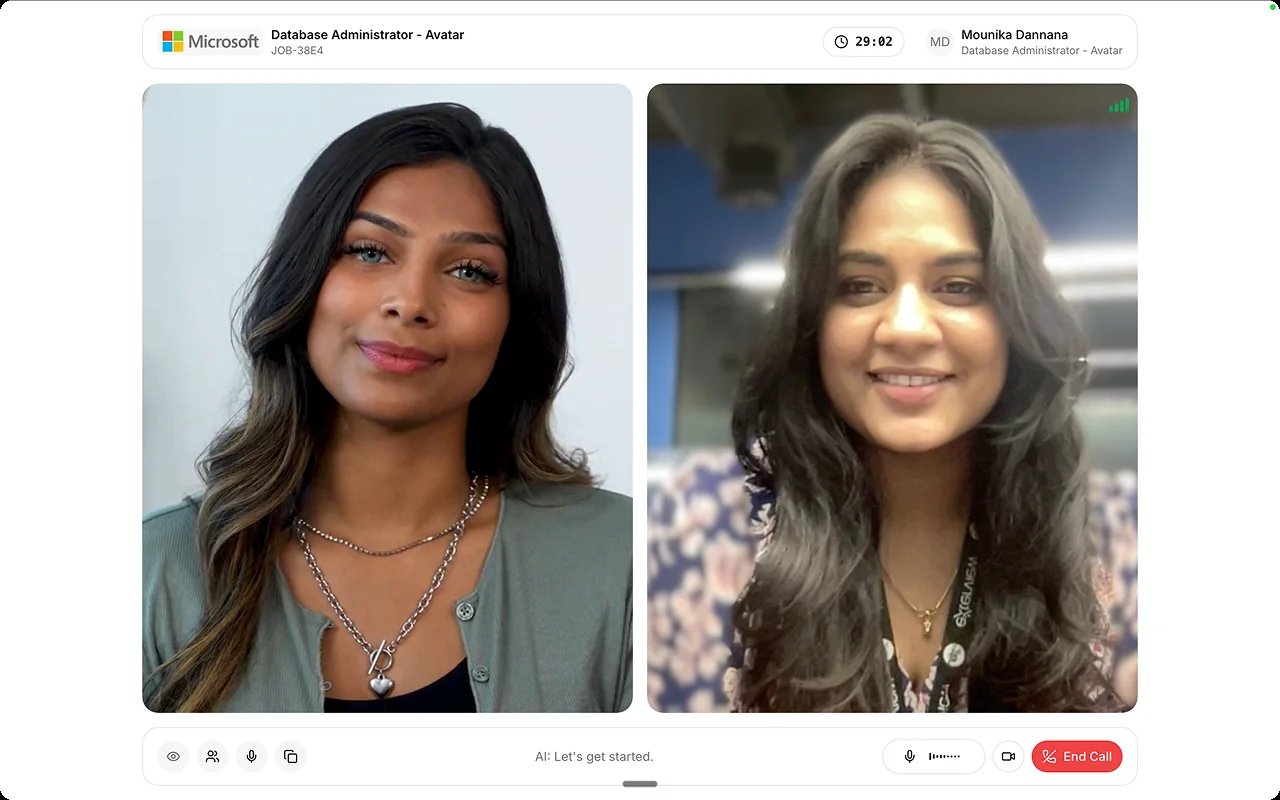
5
Scoring and automated quality checks
The agent scores the interview against the rubric, and automated quality checks run on the output before it surfaces. See AI Observability.
6
Review the Avatar AI Screening Report
Open the report from the Decision Center, read the score and the evidence behind it, and check any quality review flags. See Session Reports.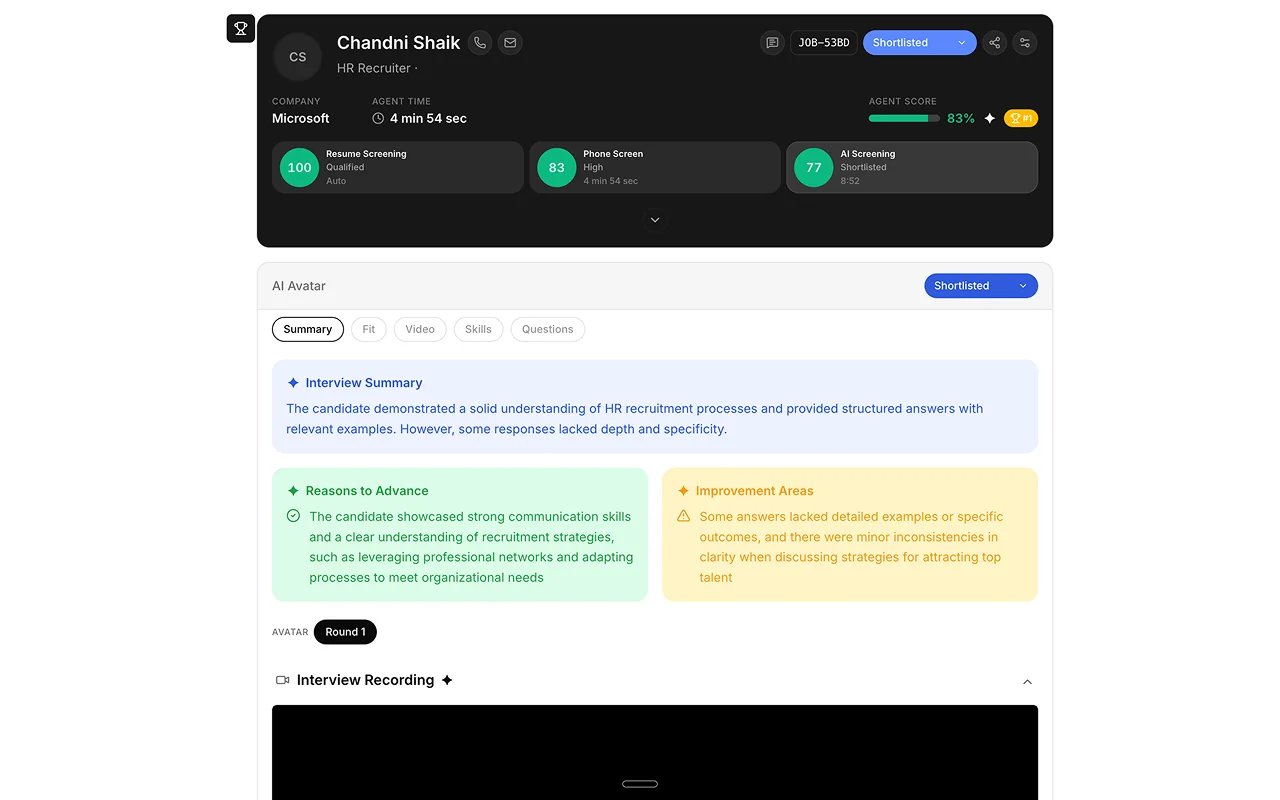
7
Make the decision
A human reviewer decides and advances or holds the candidate. Every decision change needs a stated reason, and no adverse decision is made autonomously.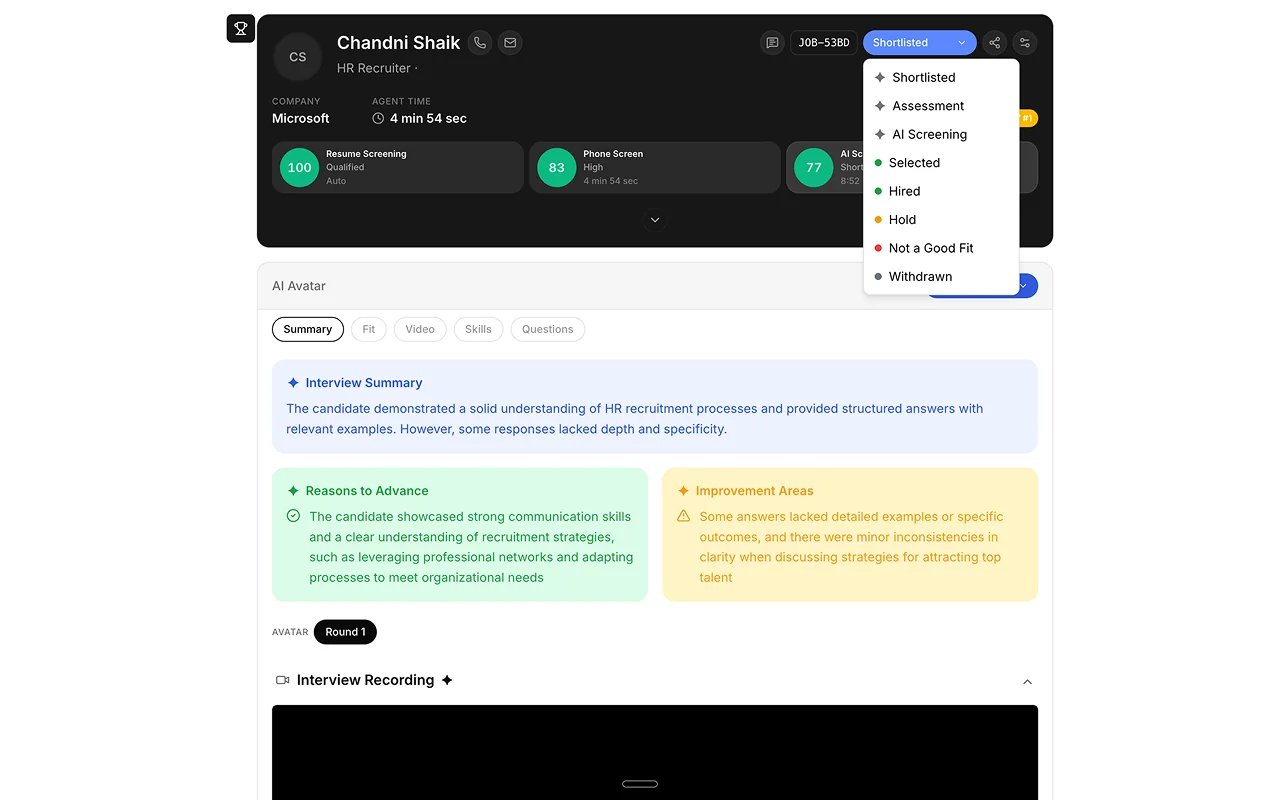
FAQs
What does EX Avatar produce?
What does EX Avatar produce?
An Avatar AI Screening Report, reviewed in Monitor.
Can we choose the avatar?
Can we choose the avatar?
Yes. Admins pick the avatar interviewer from the options in Settings, and additional avatar options appear there as they are added.
Does it analyze the candidate's face?
Does it analyze the candidate's face?
No. Scoring is content-based, grounded in what the candidate says, not facial analysis or expression.
Does a person still decide?
Does a person still decide?
Yes. The report is decision support; a human owns the outcome.
Related
- Session Types. The full agent catalog with availability.
- Instant Interviews (Voice / Avatar). The integrator view for triggering and reading back.
- Session Reports. What the Avatar AI Screening Report contains.
- Panel Interviews in Microsoft Teams. The usual next step for human rounds.