
Purpose
Weights make scoring reflect what your organization values, block by block, for every pipeline template.Steps
1
Open a template's scoring defaults
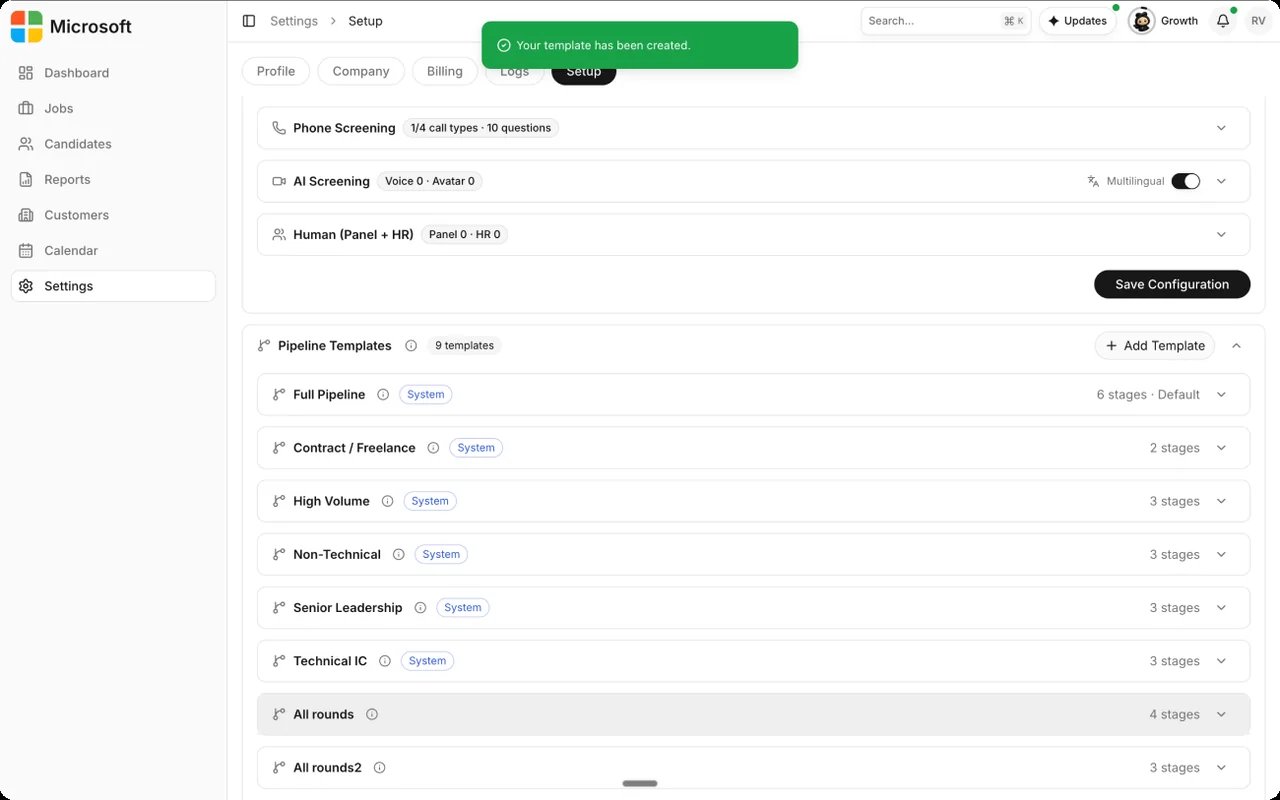
Go to Settings → Setup → Operations, expand a template under
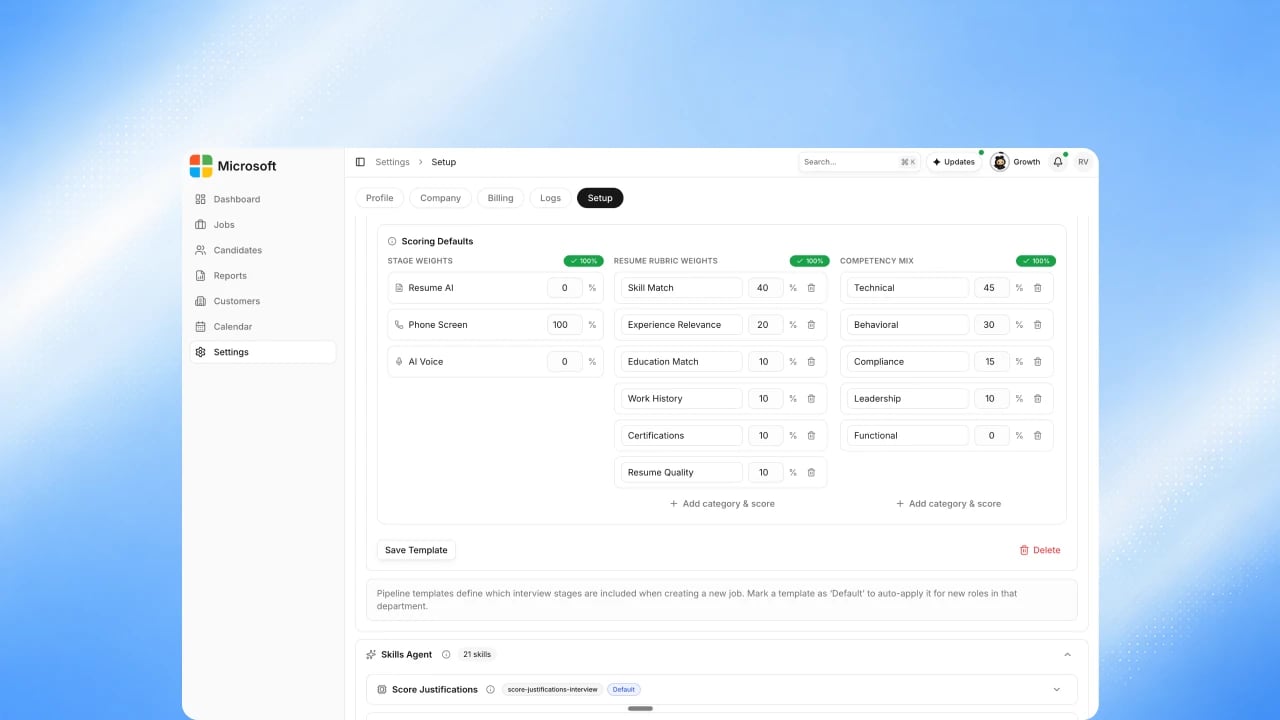
Pipeline Templates, and find its Scoring Defaults section.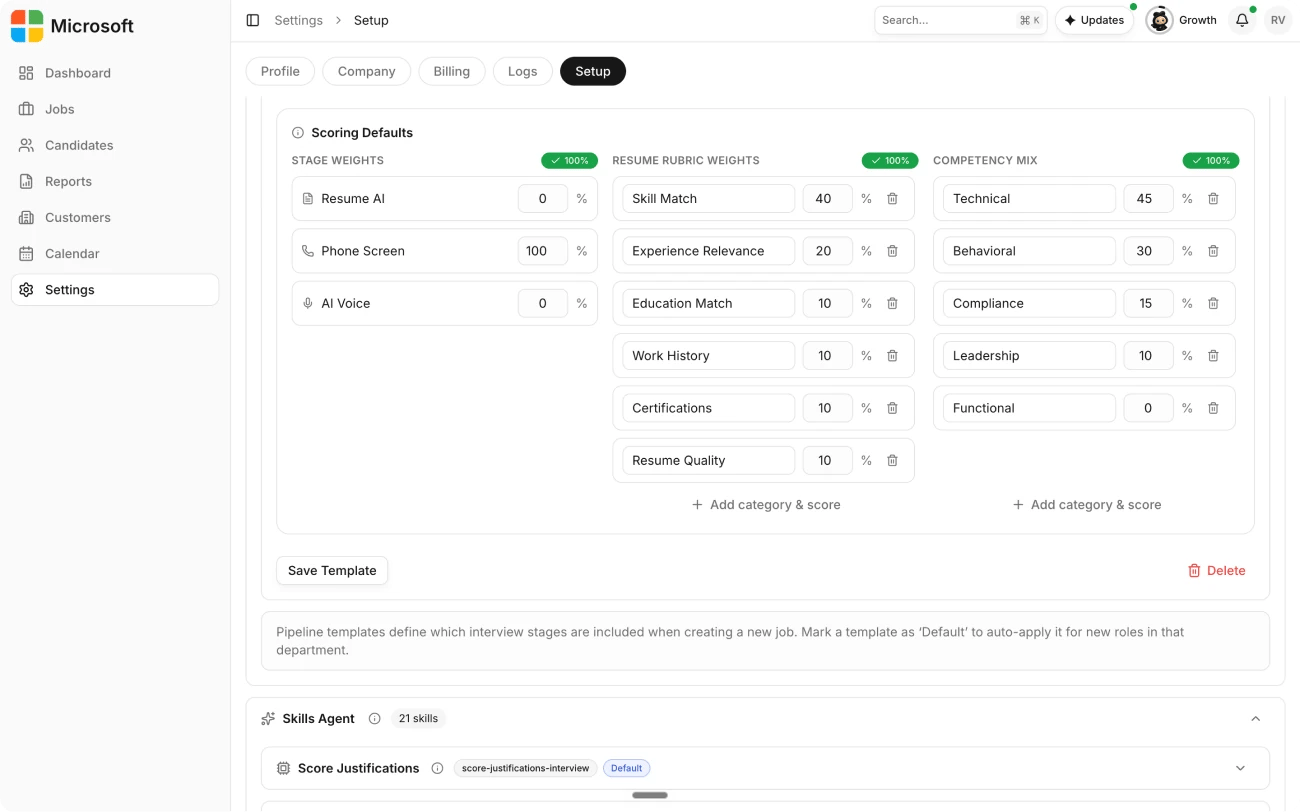
2
Set stage weights
Weight each enabled stage (for example Phone Screen, AI Voice, and AI Avatar) however your organization prioritizes them.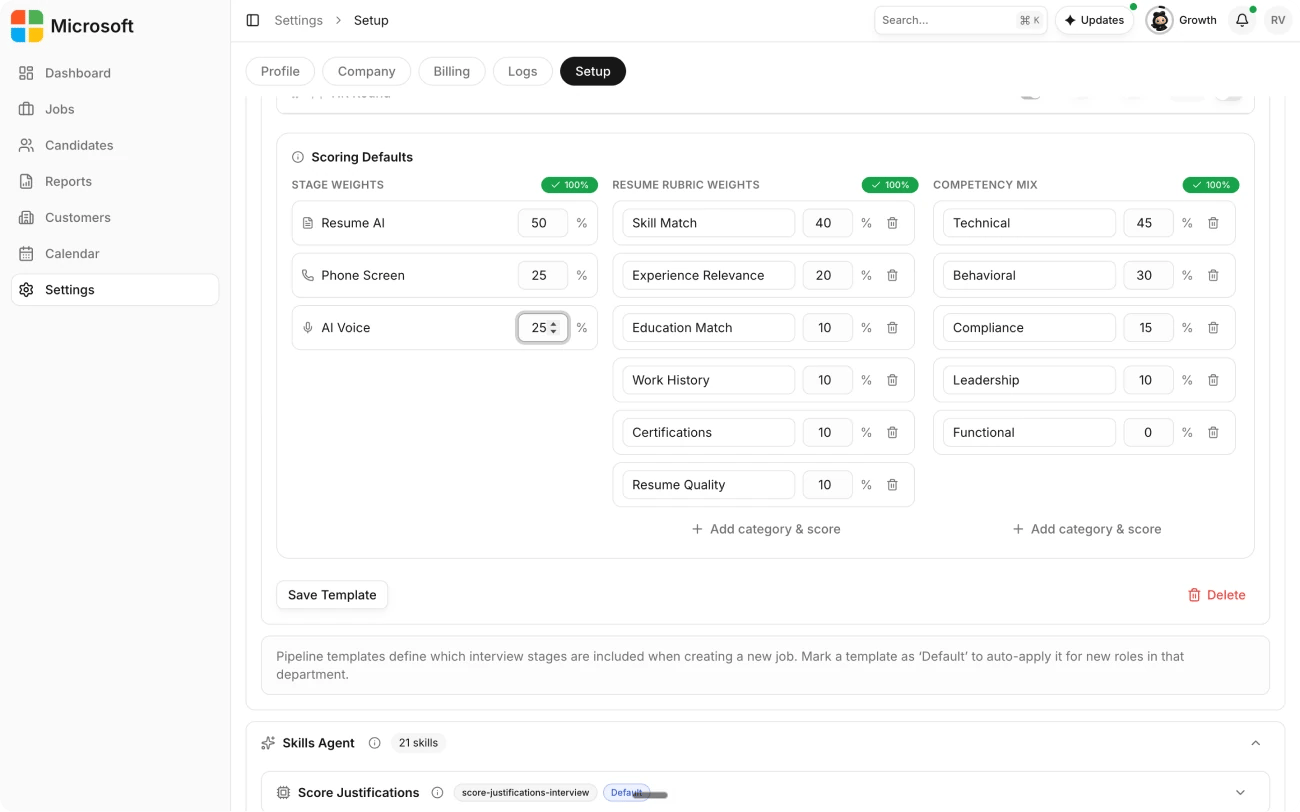
3
Set the resume rubric and competency mix
Weight resume categories like skill match and experience relevance, then
weight technical, behavioral, compliance, and leadership overall. Add or
remove categories as needed.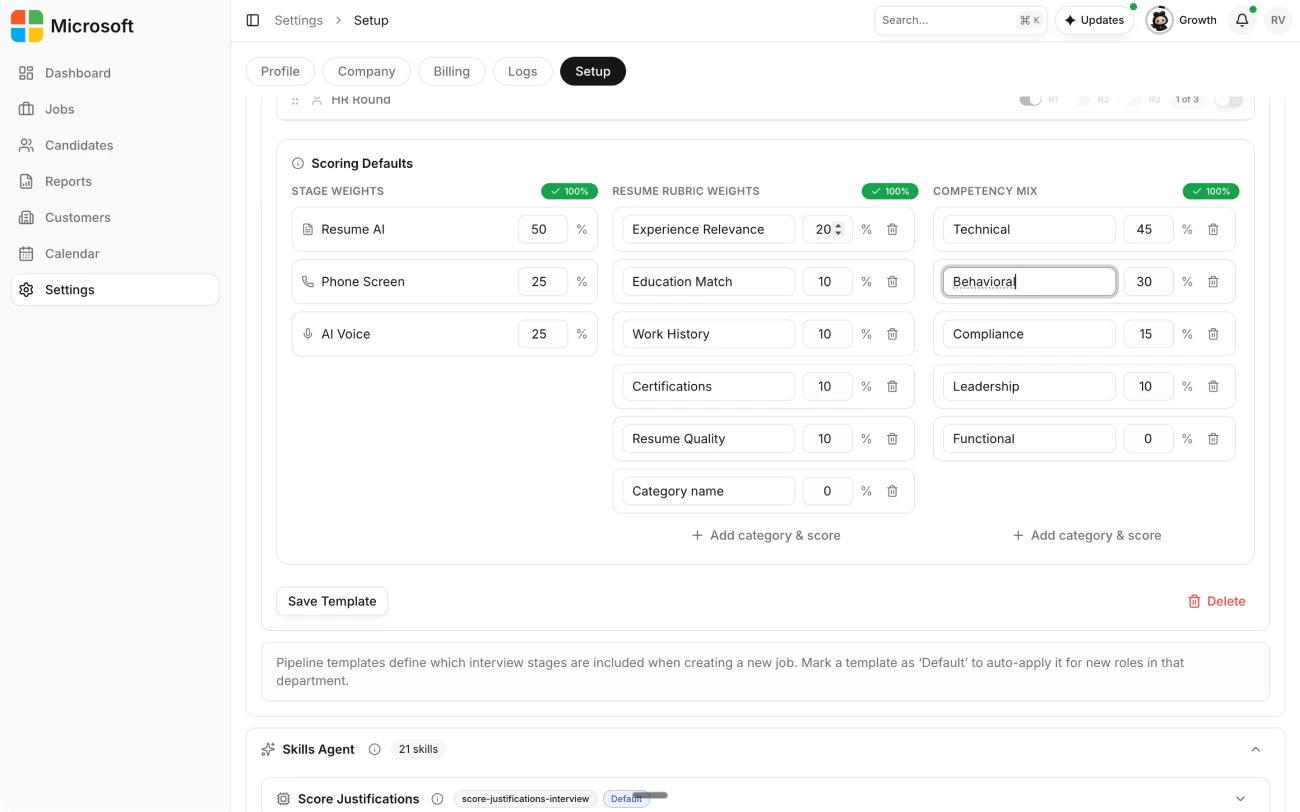
4
Watch the running total
Each block shows a live total. A block only persists when you save if it
reads exactly 100 percent. Otherwise that block is left out of what’s
saved.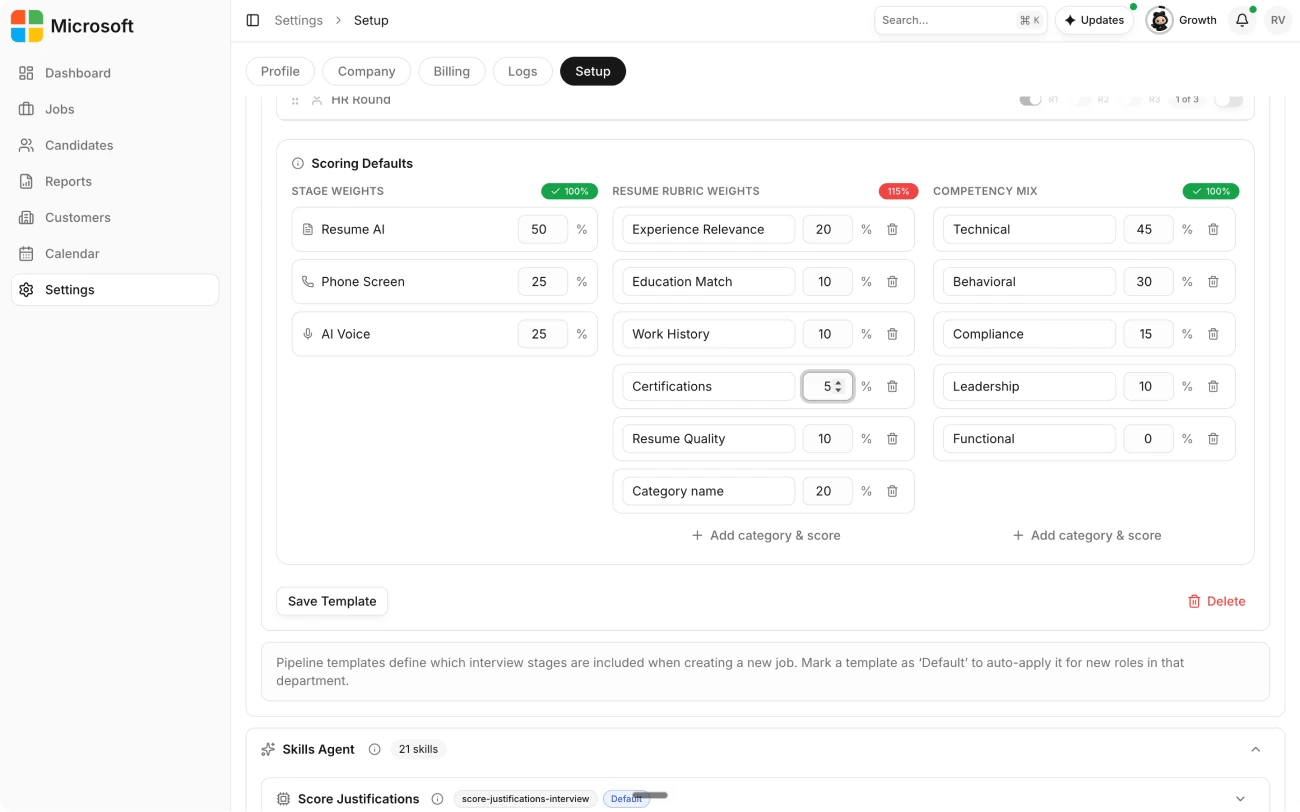
5
Save the template
Save the template to persist your weights.