

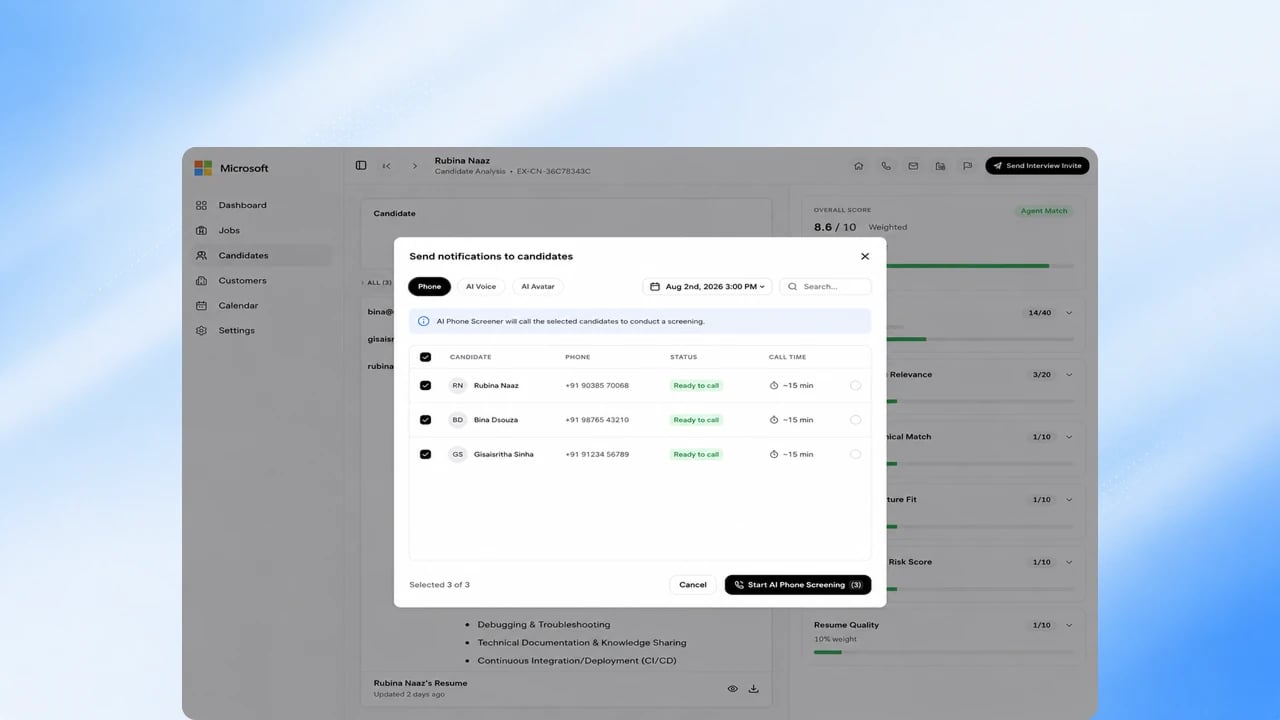
Before you start
You need a configured role with EX Call enabled, and a candidate to call. See Configure and Session Types.Steps
Each round is its own call and report. Re-dial and WhatsApp rescheduling depend on your telephony region.1
Enable EX Call for the role
Turn on EX Call for the pipeline stage where it should run, and confirm the number of questions. Add further phone rounds if the role needs more than one screen.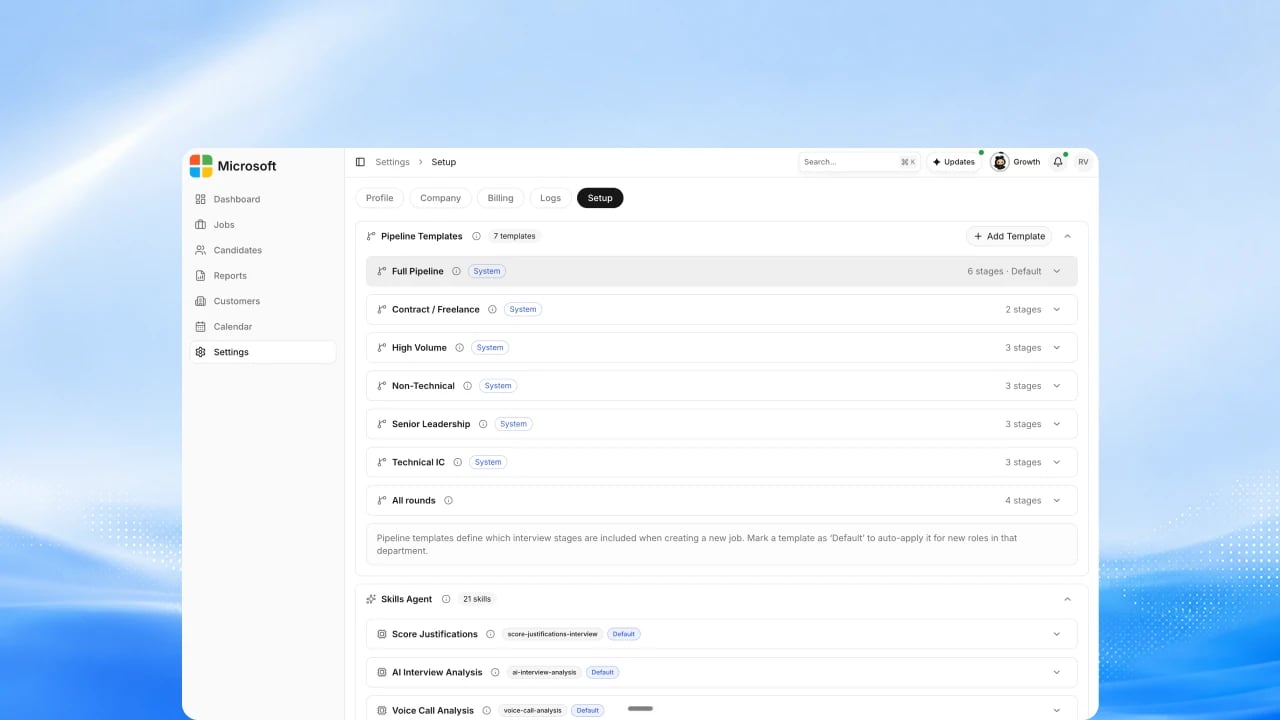
2
Confirm the question script and rubric
Review the screening questions and the rubric the agent scores against. See How to Set Scoring Weights.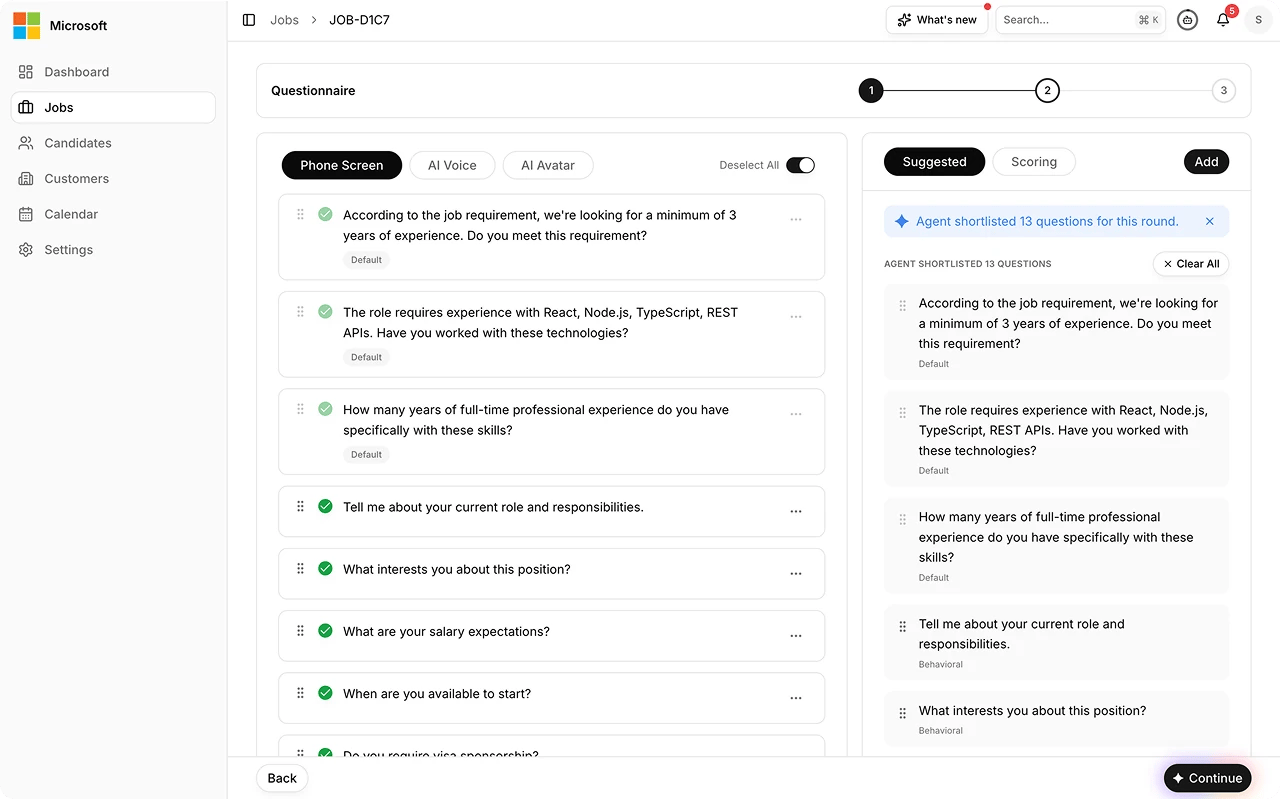
3
Trigger the call
Start the call for a candidate, or trigger in bulk. The agent places the outbound call. See Invite Flows.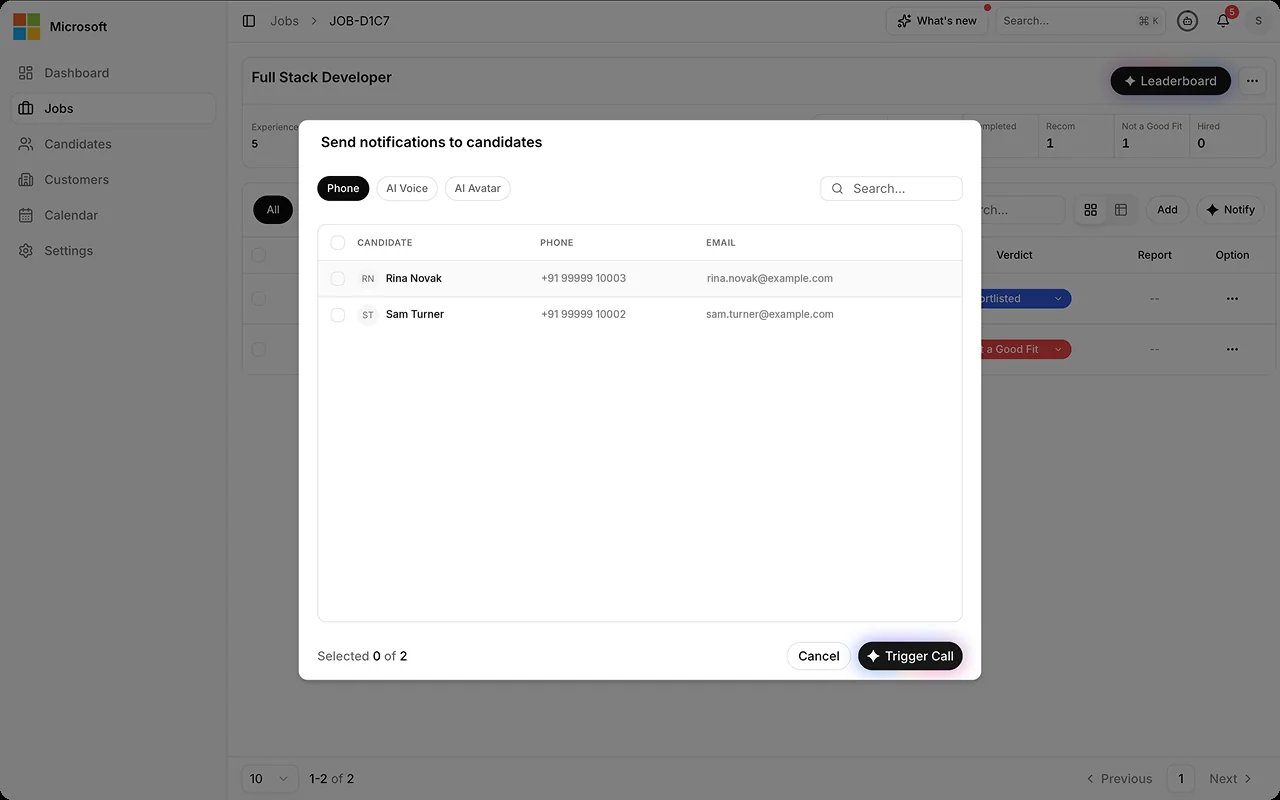
4
Candidate completes the call
The candidate answers and completes the screen with the agent. If the candidate needs a different language, the agent switches mid-call. The call is recorded and transcribed.
5
Scoring and automated quality checks
The agent scores the call against the rubric, and automated quality checks run on the output before it surfaces. See AI Observability.
6
Review the Phone Call Report
Open the Phone Call Report from the Decision Center, read the score, transcript, and evidence, and check any quality review flags. For multi-round screens, each round’s call appears under the Phone Rounds tab in the candidate’s expanded panel. See Session Reports.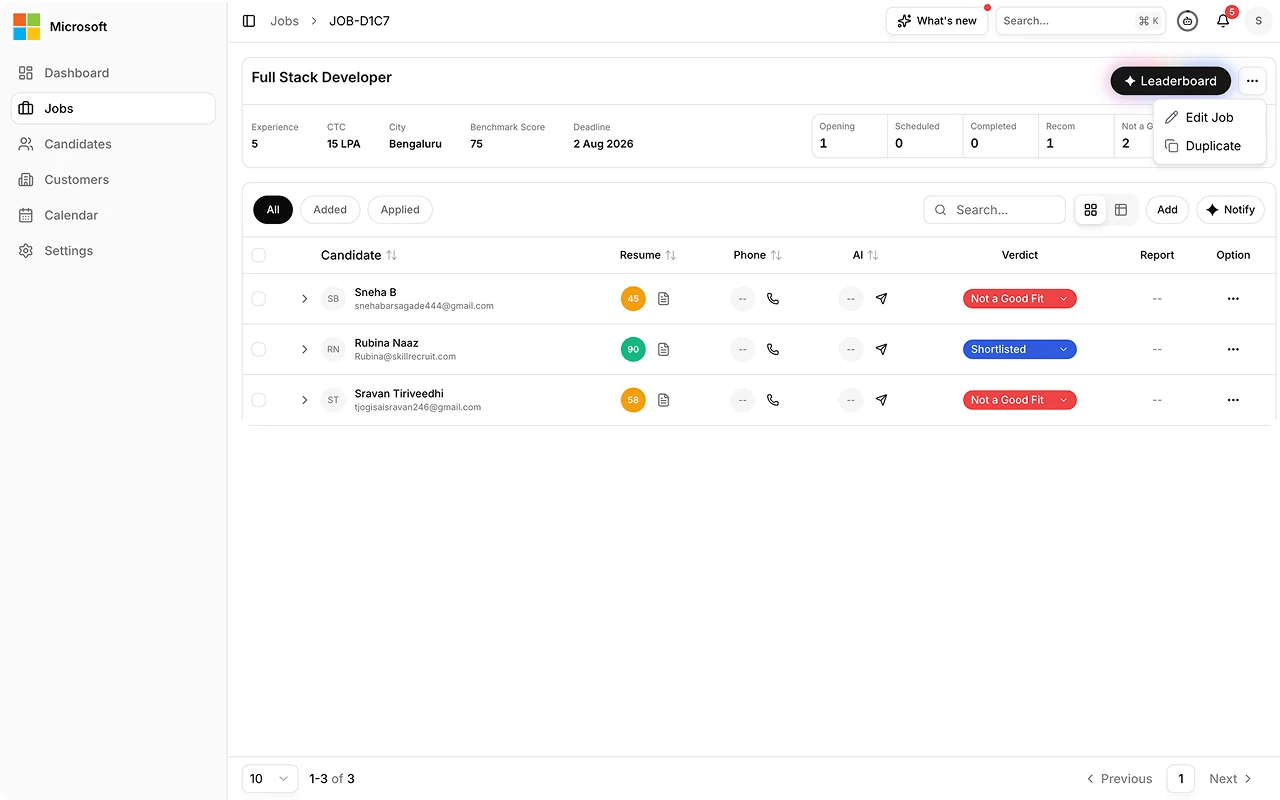
7
Make the decision
A human reviewer decides and advances or holds the candidate. Every decision change needs a stated reason, and no adverse decision is made autonomously.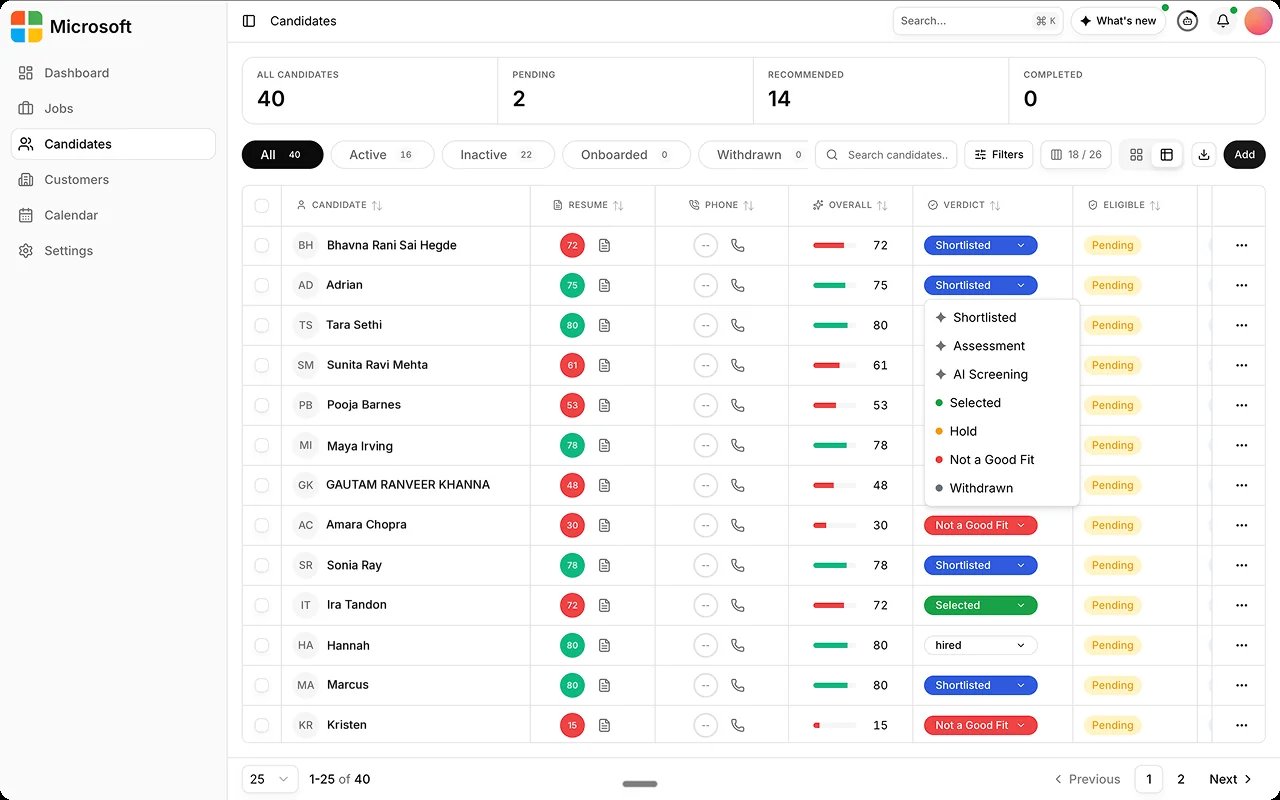
FAQs
What does EX Call produce?
What does EX Call produce?
A Phone Call Report, reviewed in Monitor.
Can a candidate have more than one phone round?
Can a candidate have more than one phone round?
Yes. Configure multiple phone rounds for the role. Each round is its own call with its own report, listed under the Phone Rounds tab.
What if the candidate prefers another language?
What if the candidate prefers another language?
The agent can switch language during the call when the candidate needs it.
Can we run it in bulk?
Can we run it in bulk?
Yes. Trigger calls individually or in bulk; each completed call produces its own report.
Does a person still decide?
Does a person still decide?
Yes. The report is decision support; a human owns the outcome.
Related
- Session Types. The full agent catalog with availability.
- Session Reports. What the Phone Call Report contains.
- EX Voice. The usual next step for a deeper interview.