

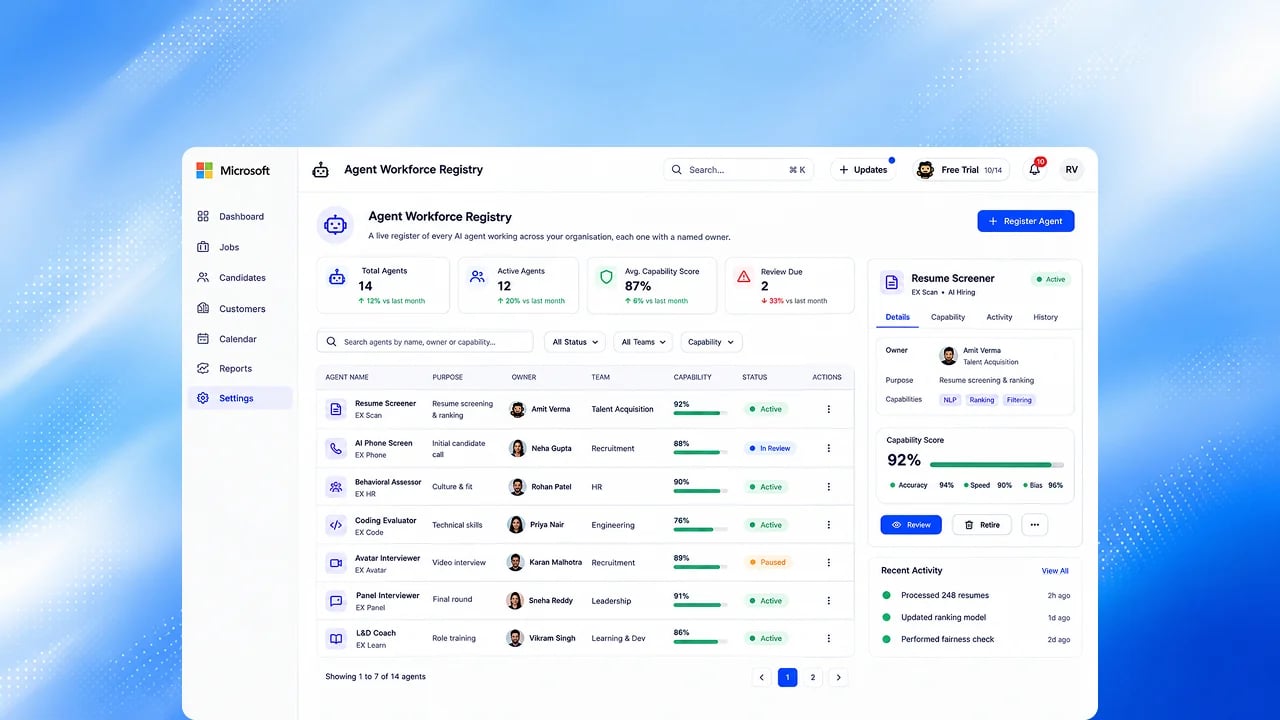
Your AI Employees
Steps
1
See your AI Employees
Go to Settings → Setup → Operations → AI Employees to see each employee
and what it does.
2
Ask for work
Ask Smaya for what you need. It hands the work to the right employee, and
the reply names the employee that did it. Every employee runs as you, with
your access.
3
Approve before it acts
Before an employee creates a role, publishes a job, or contacts a candidate,
you see an approval card. Nothing happens until you approve.
Upcoming
- The Agent Inbox: reports to view and schedules to accept, raised by a role run. A person answers every item.
- Agent Catalog and Agent Lineage in Settings, showing the agents behind your employees and how they connect.
- Employees that run on a standing goal, around the clock.
- Custom AI Employees with your own mandate and schedule.
- A control plane with per-run pause, kill switch, and budgets.
FAQs
Can an AI Employee reject a candidate?
Can an AI Employee reject a candidate?
No. No AI system sets a candidate to hired, rejected, or withdrawn. Every approval is a person’s decision, on record. Upcoming: a Drop in the Agent Inbox, which is also a person’s decision and never marks a candidate rejected.
What can an AI Employee see?
What can an AI Employee see?
What you can see. Employees run as the person who asked, with the same role and data visibility.