

Before you start
You need an active account and permission to manage candidates. Exporting to CSV also needs export permission. See Manage users and roles.Steps
1
Open Candidates
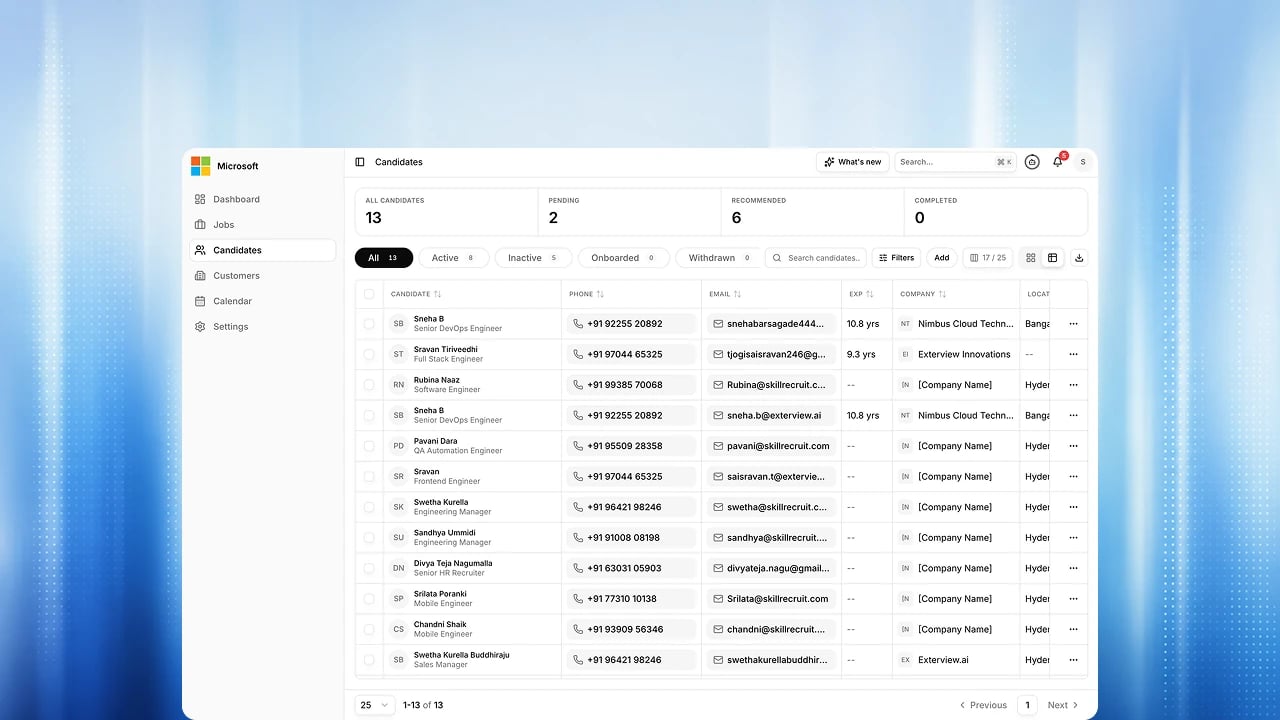
Go to the Candidates area to see everyone in table or card view, and filter by status, decision, score, notice status, job, or customer.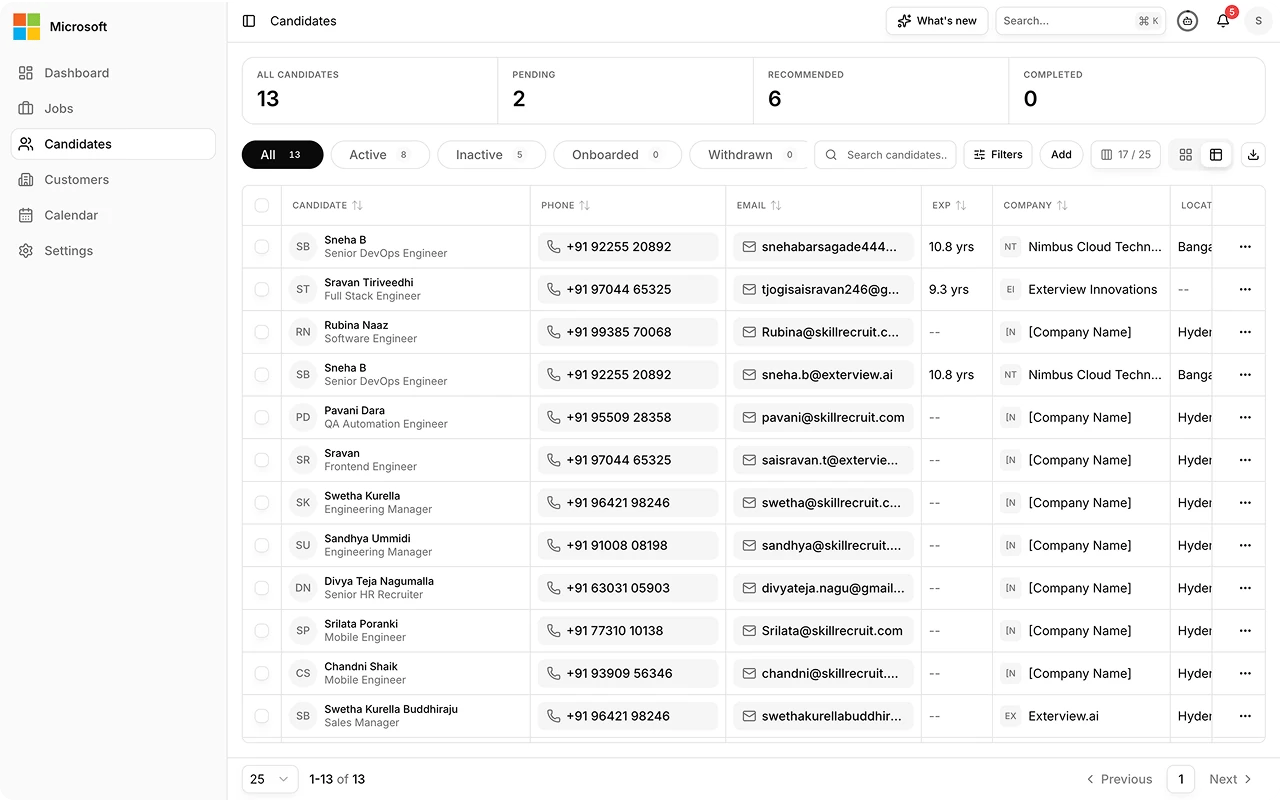
2
Add candidates
Upload resumes (PDF or DOCX) to add candidates yourself. Exterview checks each file and flags anything that isn’t a resume or is already in the system. From within a job, you can also pull candidates in from your organization’s existing pool.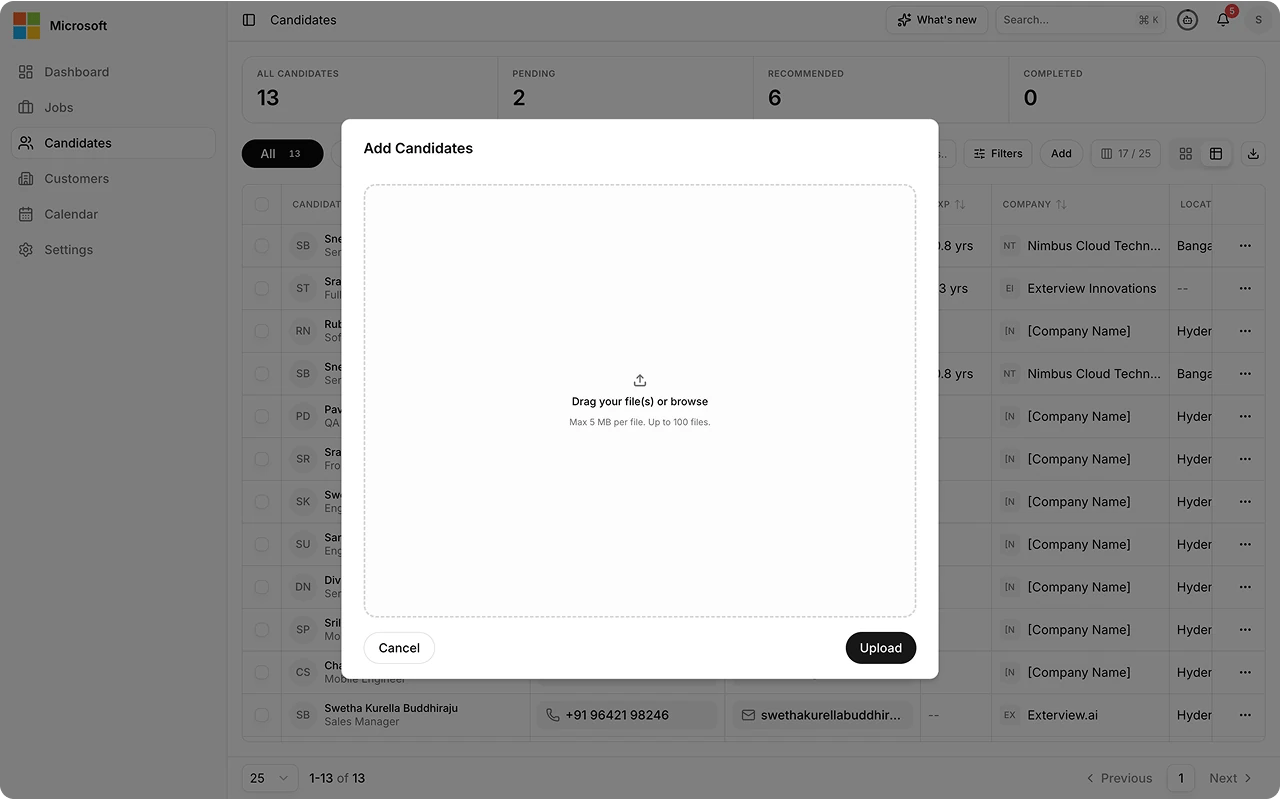
3
Review a candidate's profile
Open a candidate to see their overview, experience, skills, AI agent reports, phone rounds, and activity, or open their resume to see the AI score breakdown.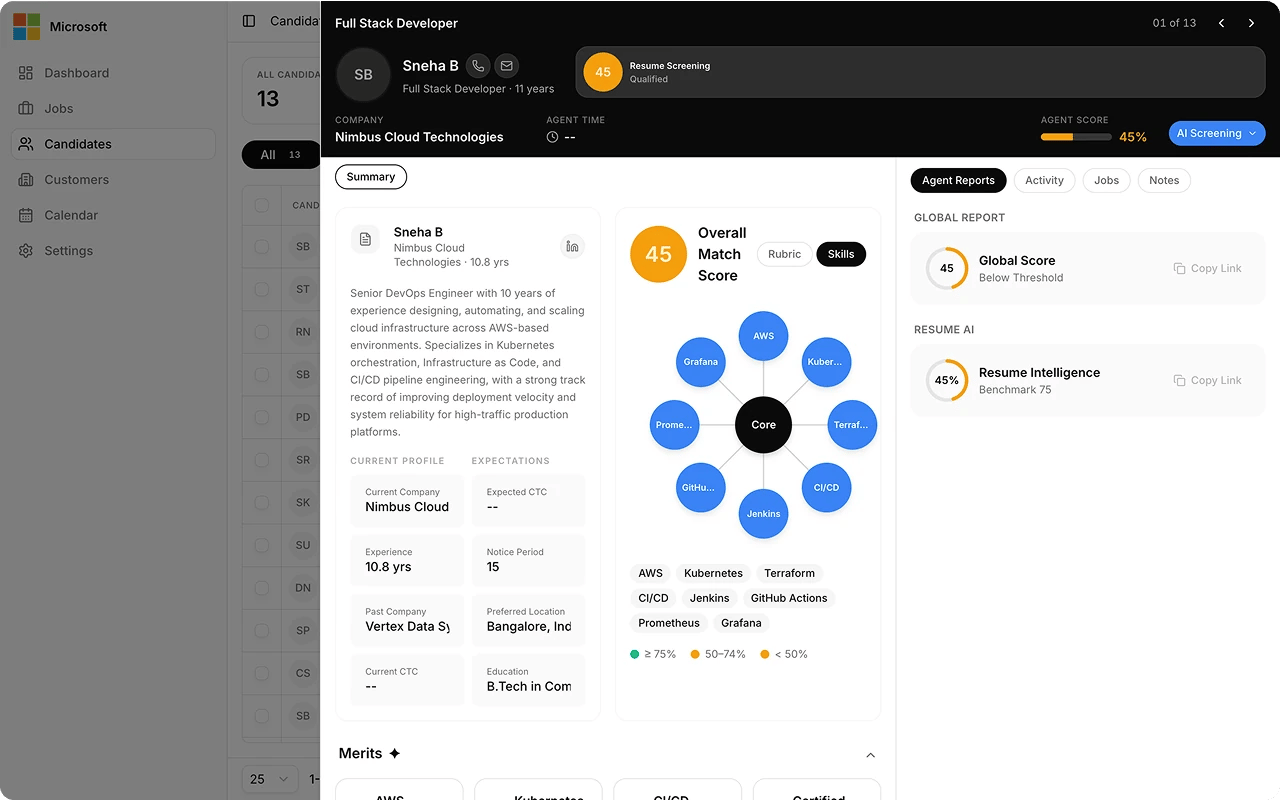
4
Record a decision
Change a candidate’s decision from the decision pill. Exterview asks you for a reason every time, and records it with your name and the time. See Running EX Scan.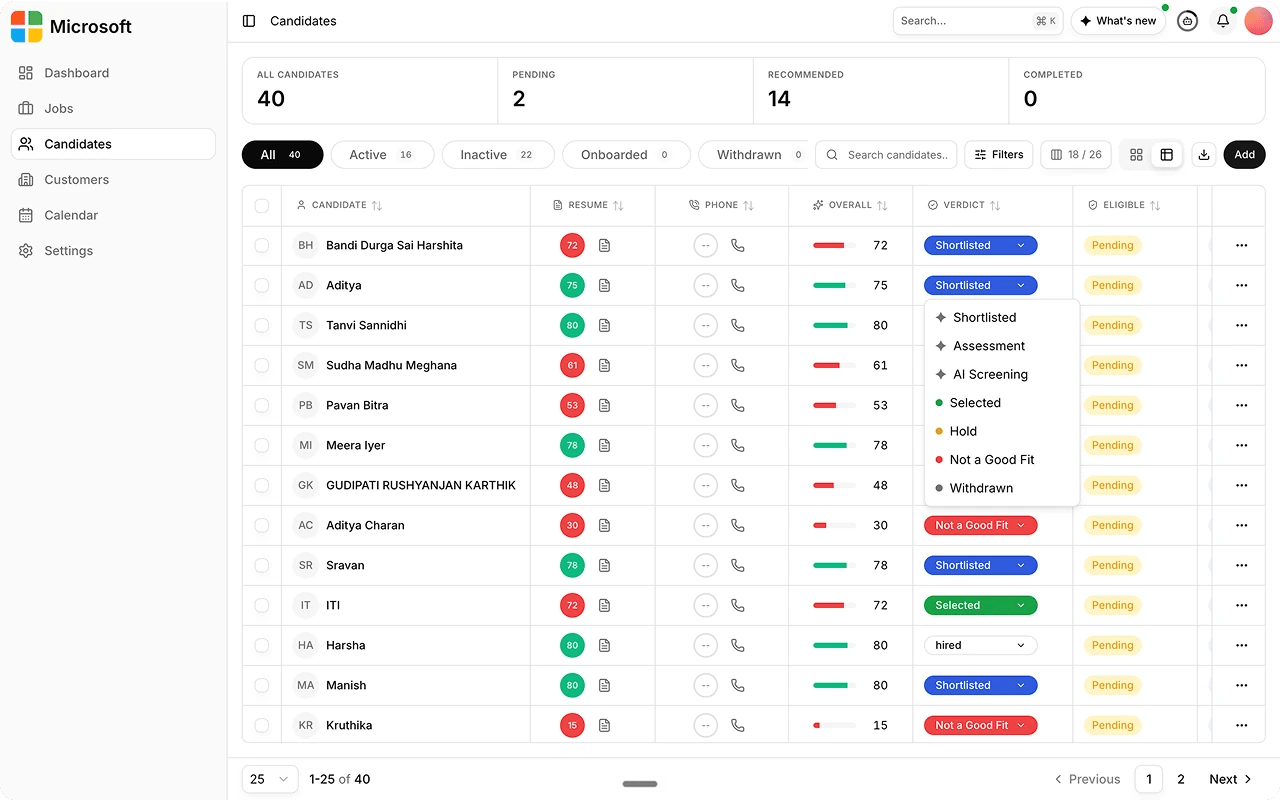
More you can do
- Override an AI score. On the candidate report, replace a score you disagree with. The override needs a written justification, and both the original score and your override stay on record.
- Act in bulk. Select several candidates to act on them together, including bulk delete.
- Download CSV. Export the candidate list from the Candidates toolbar.
- Browse recordings. Inside a job, the Video tab shows candidate cards with their interview recordings, and People Pipeline stacks candidates by stage.
Decision Center
The Decision Center (formerly Reports) is where you review candidates, their scores, and their interview reports side by side, and record decisions. Switch the score table to interview cards to review recordings together, and hover over a candidate’s avatar to ask Smaya about them. Below-bar candidates stay visible for a person to review. They are never hidden. Below-bar candidates stay visible for a person. Only a person sets hired, rejected or withdrawn.Find a candidate
Press ⌘K (Mac) or Ctrl+K (Windows), or select search in the header, to jump to any job or candidate by name from anywhere in the workspace. On the Candidates page, search by name and use the filters to narrow the list. See Search and export data. Upcoming: Agent Search, a natural-language search across your talent pool.Best practices
Scoring is reproducible, which means it faithfully reproduces bad inputs too. These practices come from Maintaining Data Quality.FAQs
Is this an AI feature?
Is this an AI feature?
No. Viewing and managing candidates is a standard platform task. Scoring happens when an agent evaluates them, and decisions stay with your team.
Can I add candidates manually or import them in bulk?
Can I add candidates manually or import them in bulk?
Yes. Upload resumes on the Candidates page to add candidates yourself, one at
a time or in bulk. Candidates also keep arriving automatically from your
careers page and the systems you’re connected to.
Can the AI reject a candidate?
Can the AI reject a candidate?
No. An AI score can inform a decision, but only a person can set a candidate
to hired, rejected, or withdrawn.
Where did Reports go?
Where did Reports go?
It is now the Decision Center. Your reports, scores, and filters are all there.