

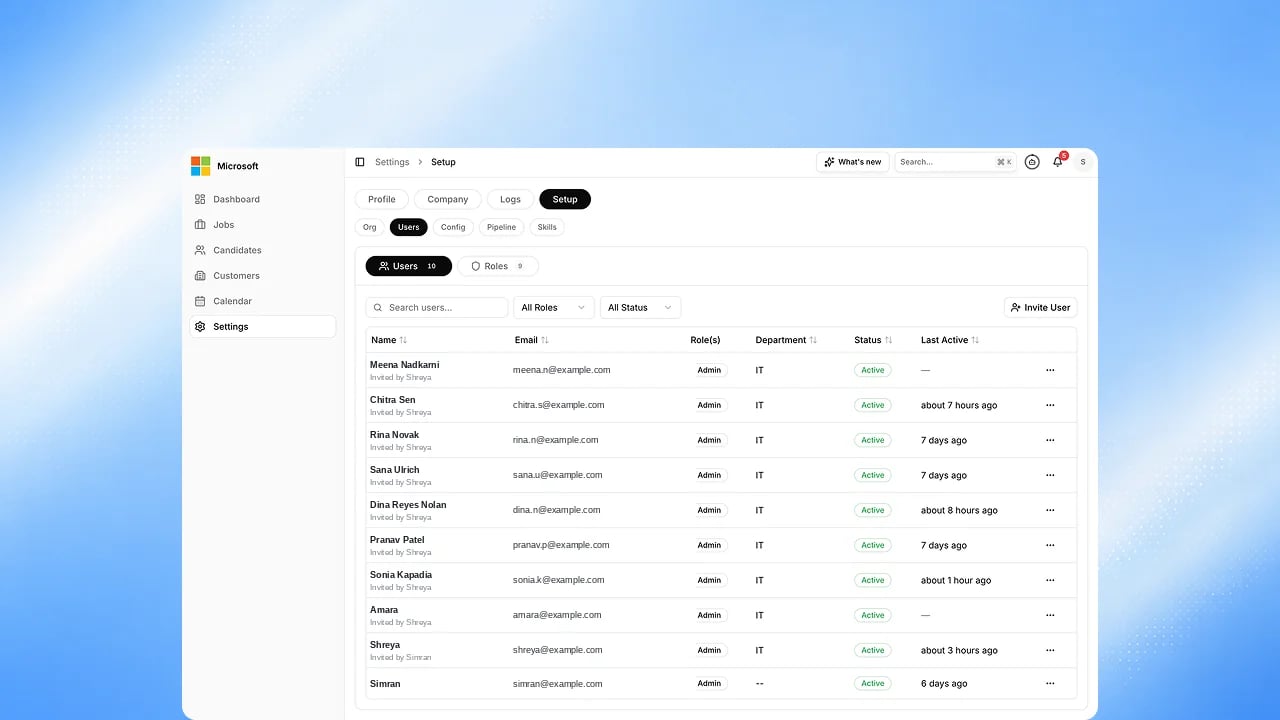
Before you start
You need administrative permission to manage users. Exterview provides three system roles (Admin, HR Manager, and Recruiter) plus any custom roles you create.Steps
1
Open Users and Roles
Go to the users and roles admin area.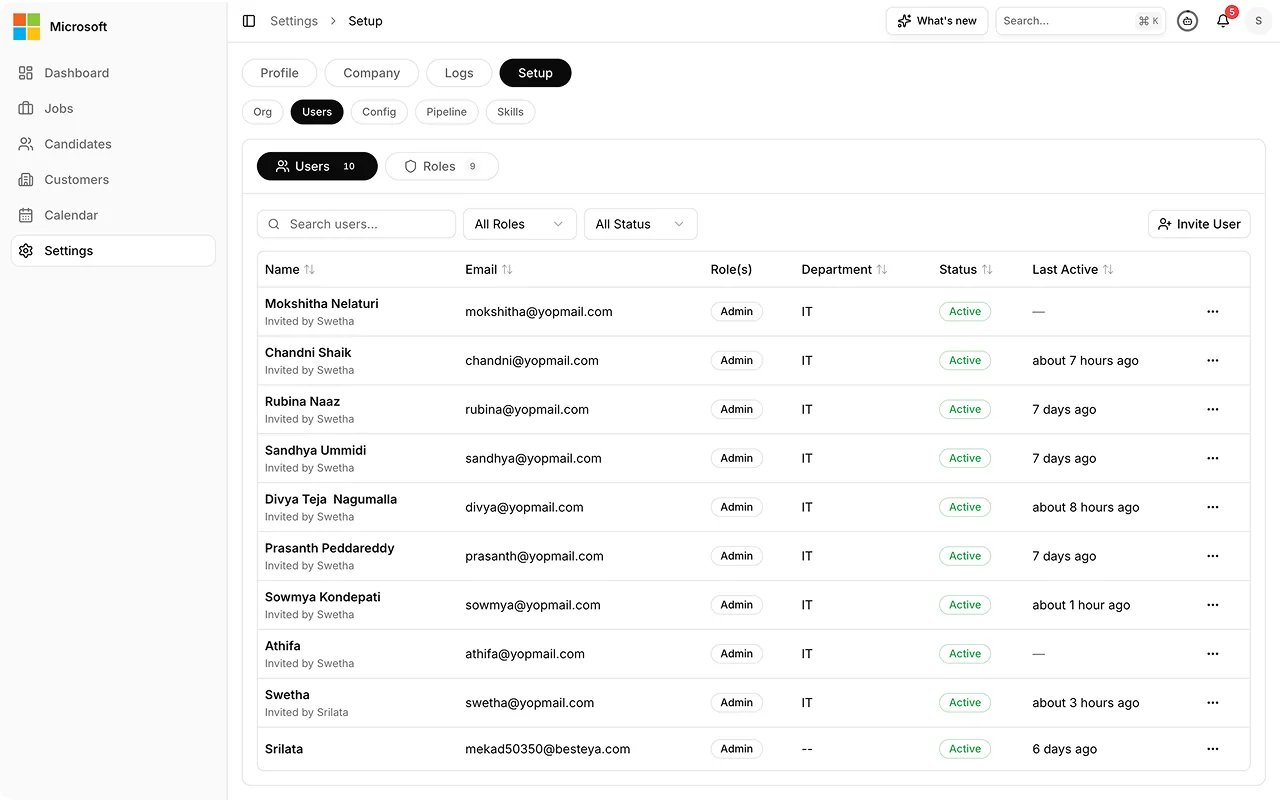
2
Invite a user
Add their full name, work email, role, and department, then send the
invite. Each role also sets Data Visibility: whether the person sees
records across the Organization, their Department, or only their Own
records. See How to Assign Roles and Access
for what each role can do.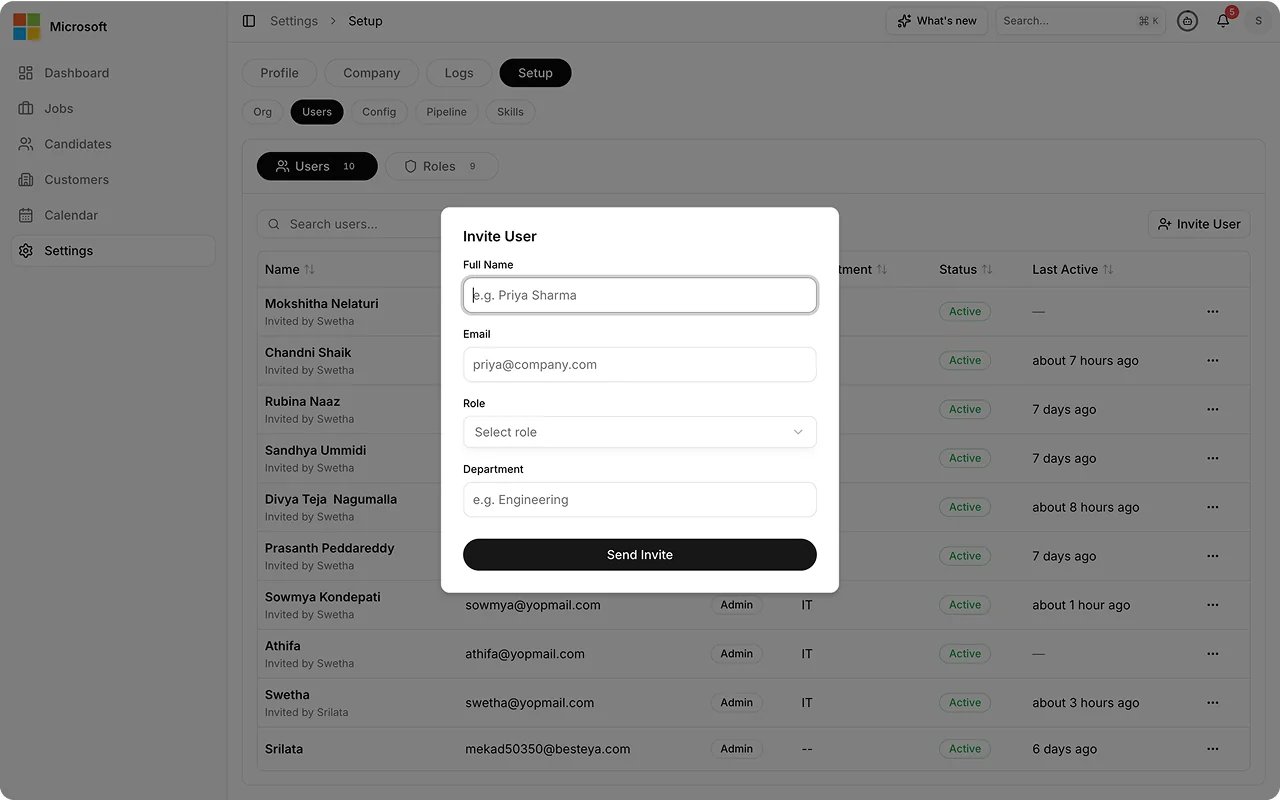
3
Search and filter
Search by name or email, or filter by role and status to find anyone in
the list quickly.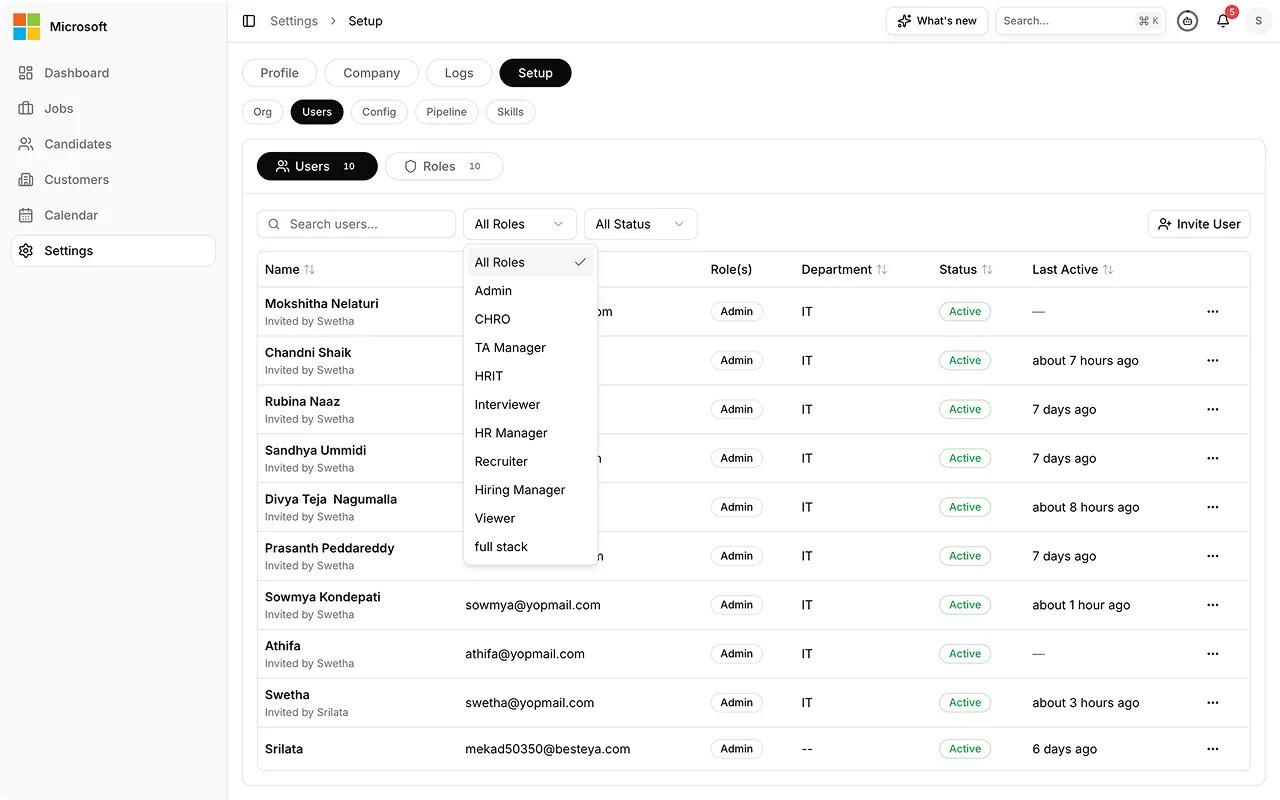
4
Manage status
Deactivate or reactivate an active user, or resend or cancel a pending
invite. The invited person sets their own password from the invite link
and signs in.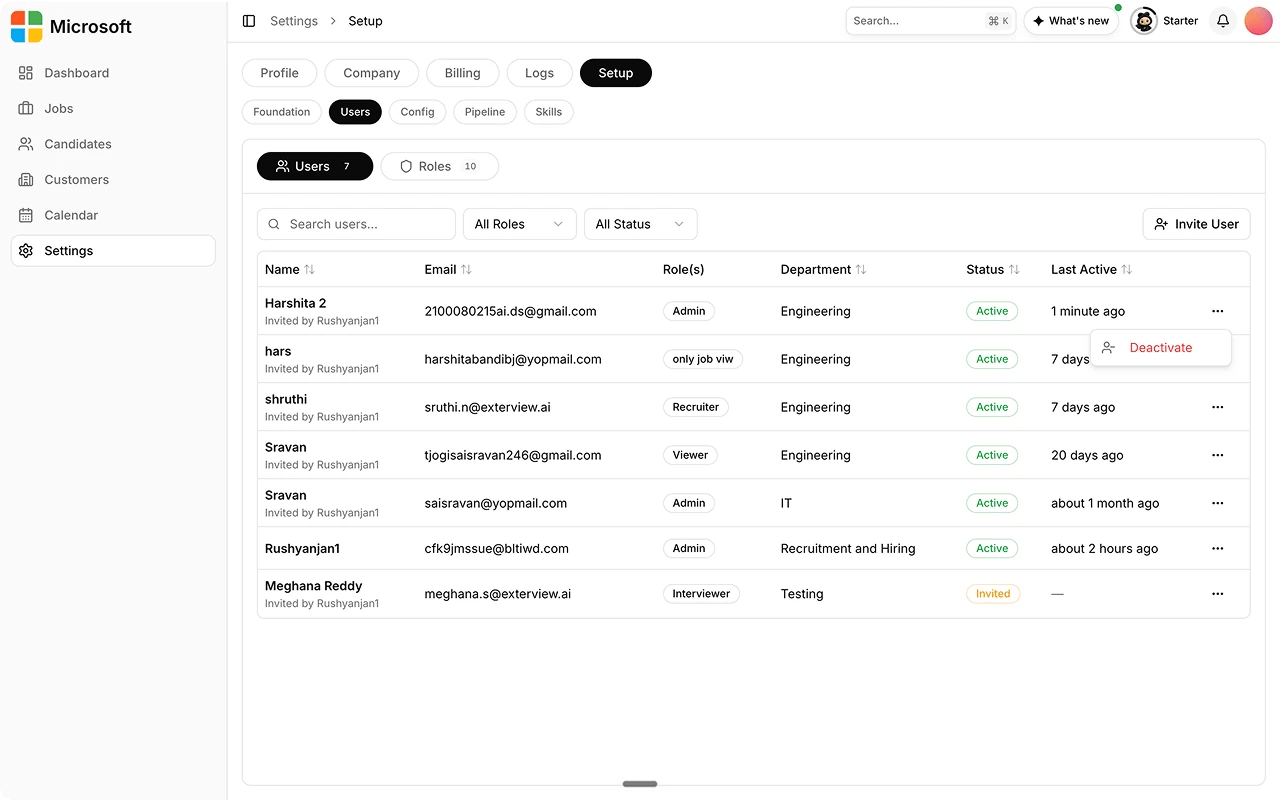
FAQs
Is this an AI feature?
Is this an AI feature?
No. This is standard RBAC, the same kind of access control any enterprise platform uses.
How many roles are there?
How many roles are there?
Three system roles (Admin, HR Manager, and Recruiter) each with its own fixed
permission matrix, plus custom roles you create yourself with permissions you
set. Every role also carries a Data Visibility scope: Organization,
Department, or Own records.
Is every permission fully enforced today?
Is every permission fully enforced today?
The system checks permissions for the core areas you set up, but fine-grained enforcement in some areas is still being completed. If you notice access that does not match what you configured, contact your Exterview representative.